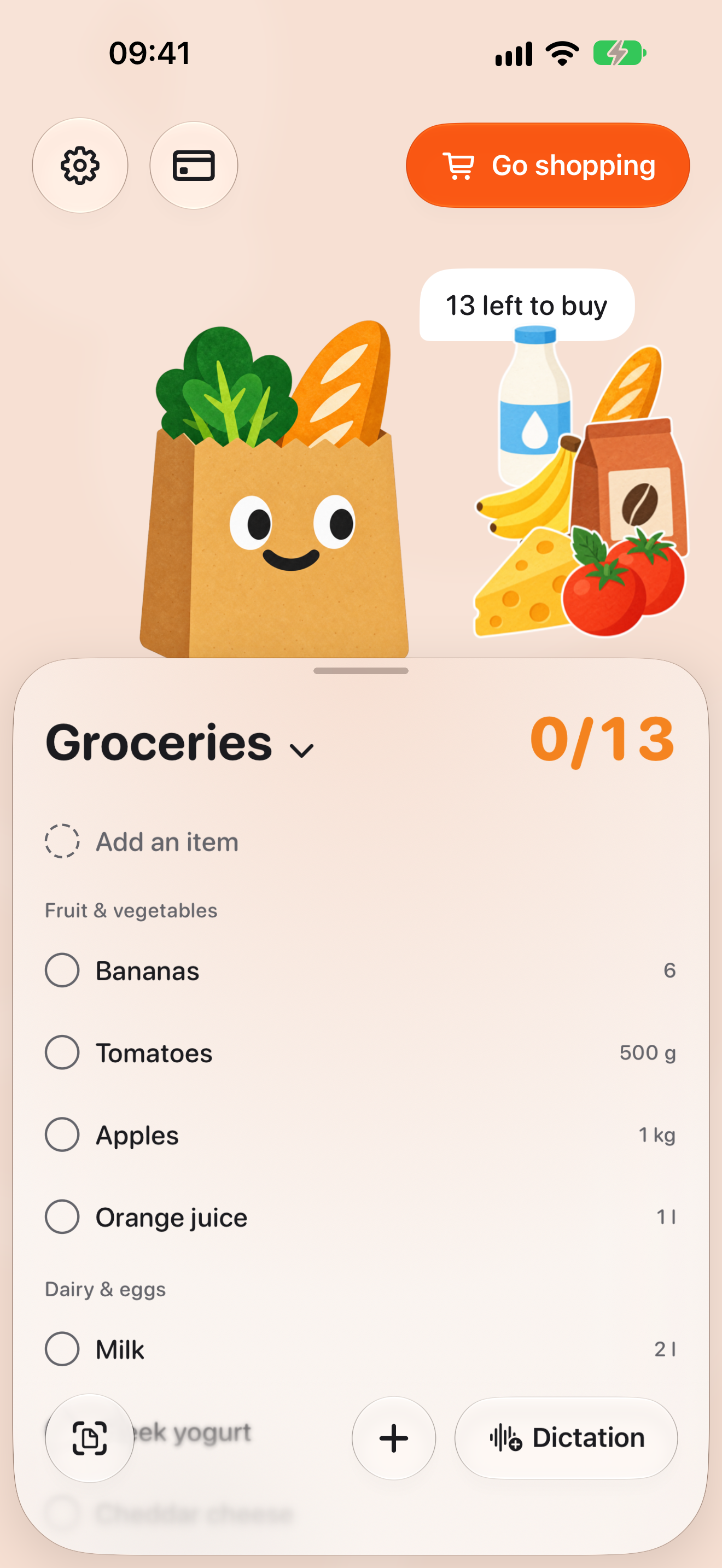
A grocery list is a simple thing, and an app for one is easy to overload. On October 5 I sat down and cut everything from BAGGO that felt like too much.
What I removed
Search inside a list went, along with notes on items, ready-made sets, the history screen and the “Forgot anything?” prompt. Later I also removed undo for the last action and its “Undo” banner.
On the same day I removed store mode entirely: the “Start shopping” and “Finish shopping” buttons, the larger rows, and keeping the screen on. The list on the Lock Screen stayed, but you had to start it from a menu item.
What stayed
Several lists, an item’s name and quantity, automatic aisles. Duplicate protection, drafts and suggestions as you type. Voice, photos, widgets, Siri and Baggy, the helper.
Why store mode had to come back
I wrote a list at home and took that version to Mercadona. I felt how awkward it was right away.
I had to keep unlocking the screen. The rows were small, and hitting them while walking was hard.
As a shopper I wanted something else: a screen with large rows that are hard to miss, and one that does not go dark. And if the phone does lock, I wanted to keep using the list straight from the Lock Screen.
How it came back
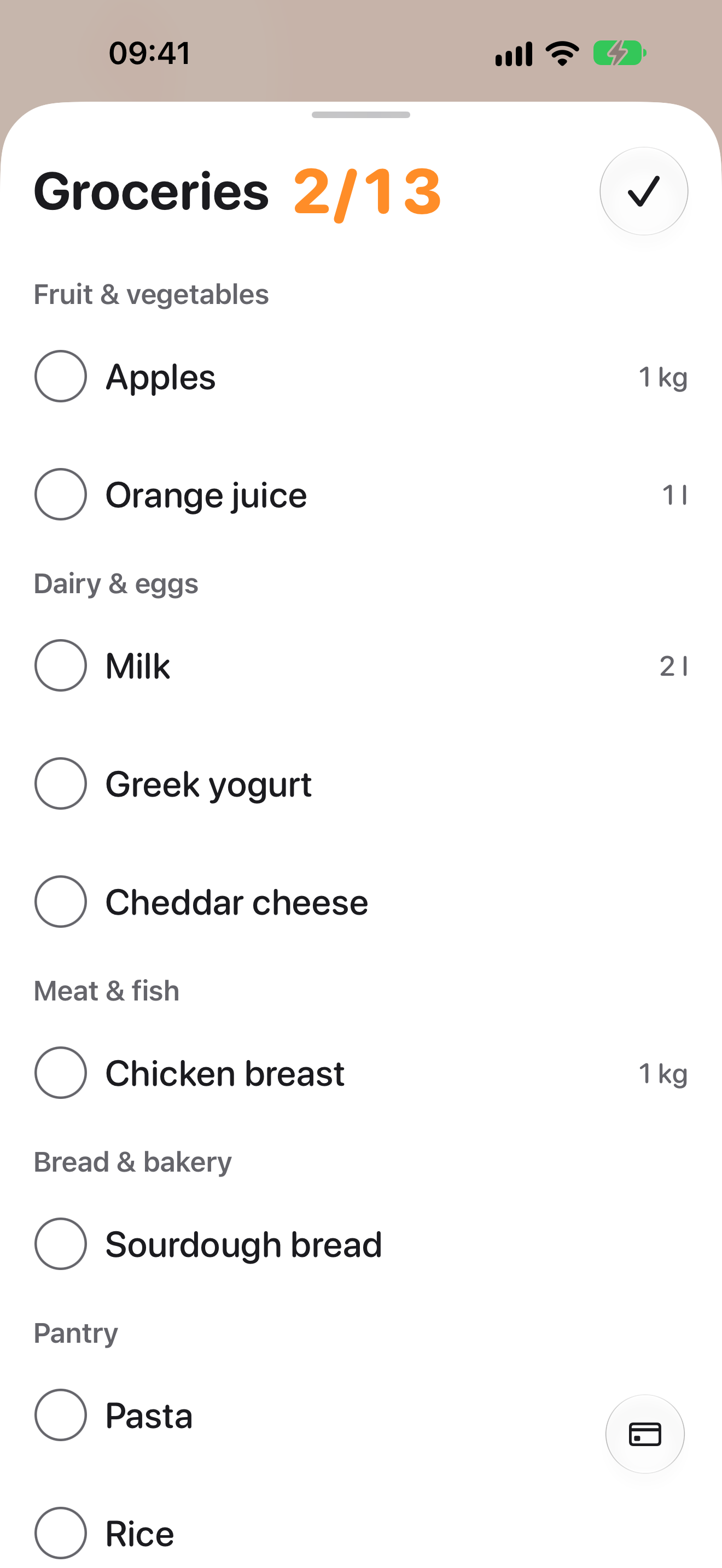
Now it is one button, “Go shopping.” It gives you a large, stripped-down list and the list on the Lock Screen at the same time.
Rows are at least 72 points tall instead of the usual 48. Only two actions are available in the mode: check an item off, or mark it “Not found.” There is no input, no menu and no editing.
While store mode is open, the screen stays on. If you do not want that, you can turn off “Keep the screen on while shopping” in Settings.
The Lock Screen shows the next two items. You can check them off without unlocking the phone.
Shopping does not end at the last checkmark
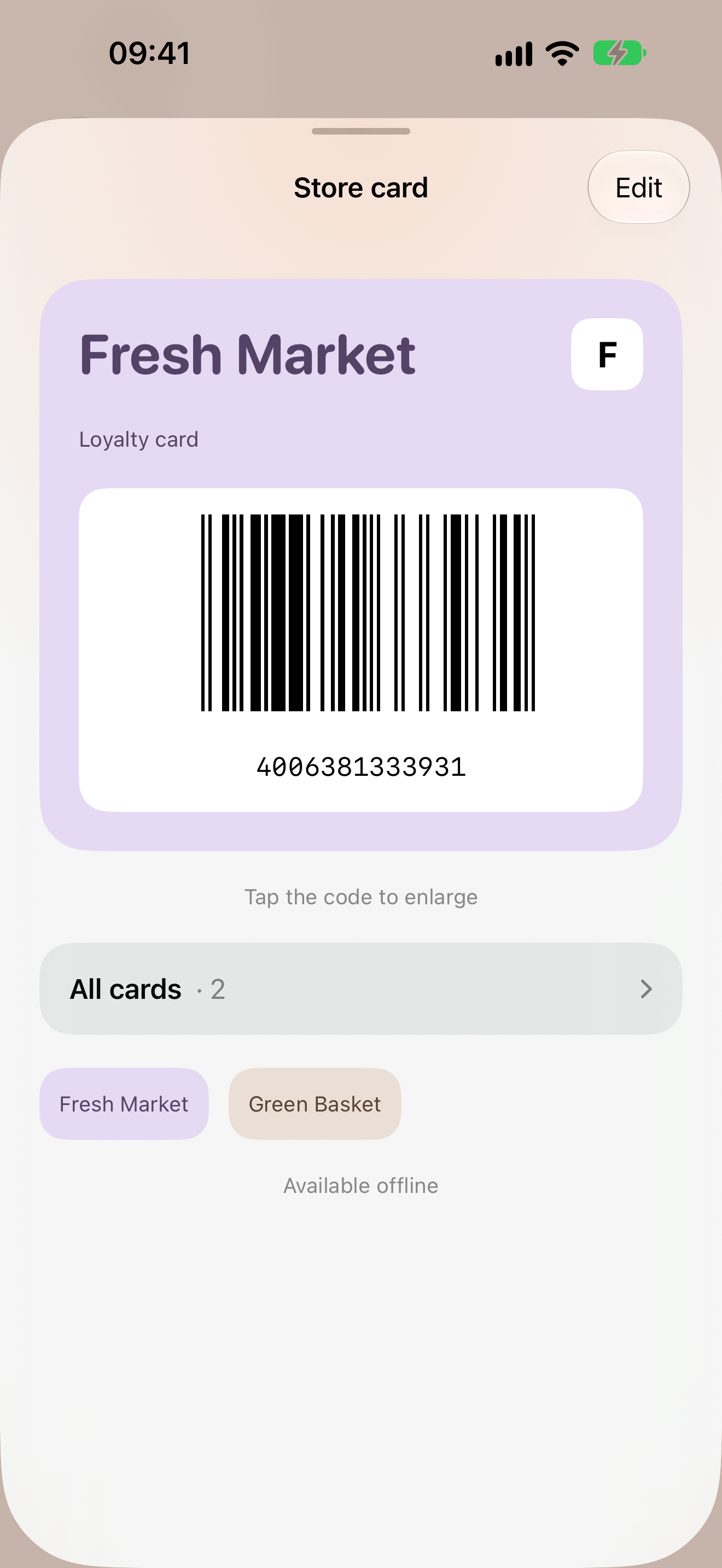
Store mode finishes before you reach the checkout. So if you keep loyalty cards in the app, the “Everything purchased” summary does not disappear after a couple of seconds. It stays on screen with a “Show card” button.
What I want BAGGO to be
Minimal, and cheerful in moderation. Baggy shows hints and jokes now and then, but stays out of the way.
The rest is a convenient “Go shopping” mode and widgets, so you can see the list without opening the app.